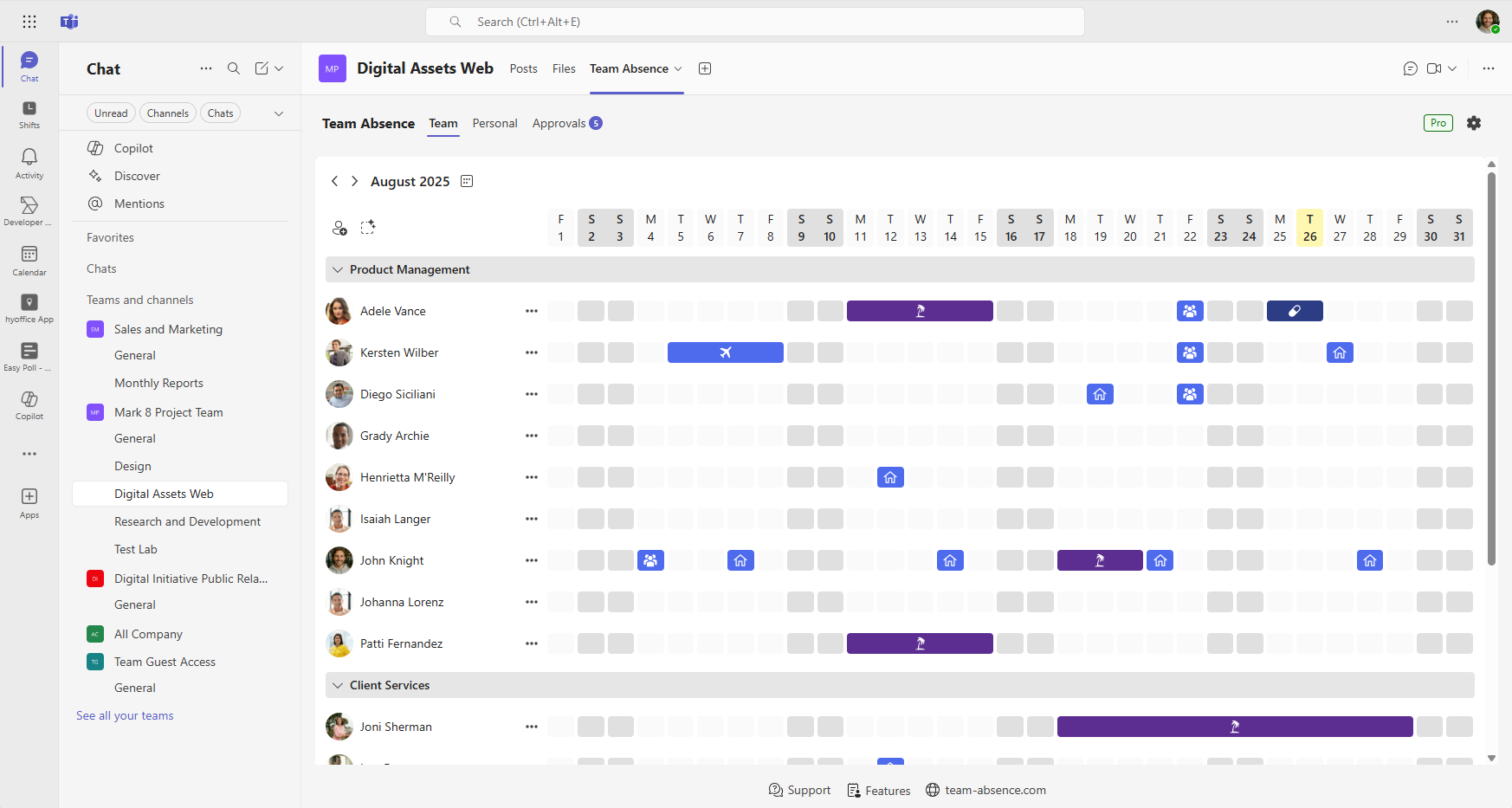
Many teams start by scheduling out-of-office absences manually in Microsoft Outlook. Keeping the calendar up to date helps coworkers plan meetings and make decisions based on accurate availability. For more advanced absence management, Team Absence provides a central overview and keeps Outlook informed.
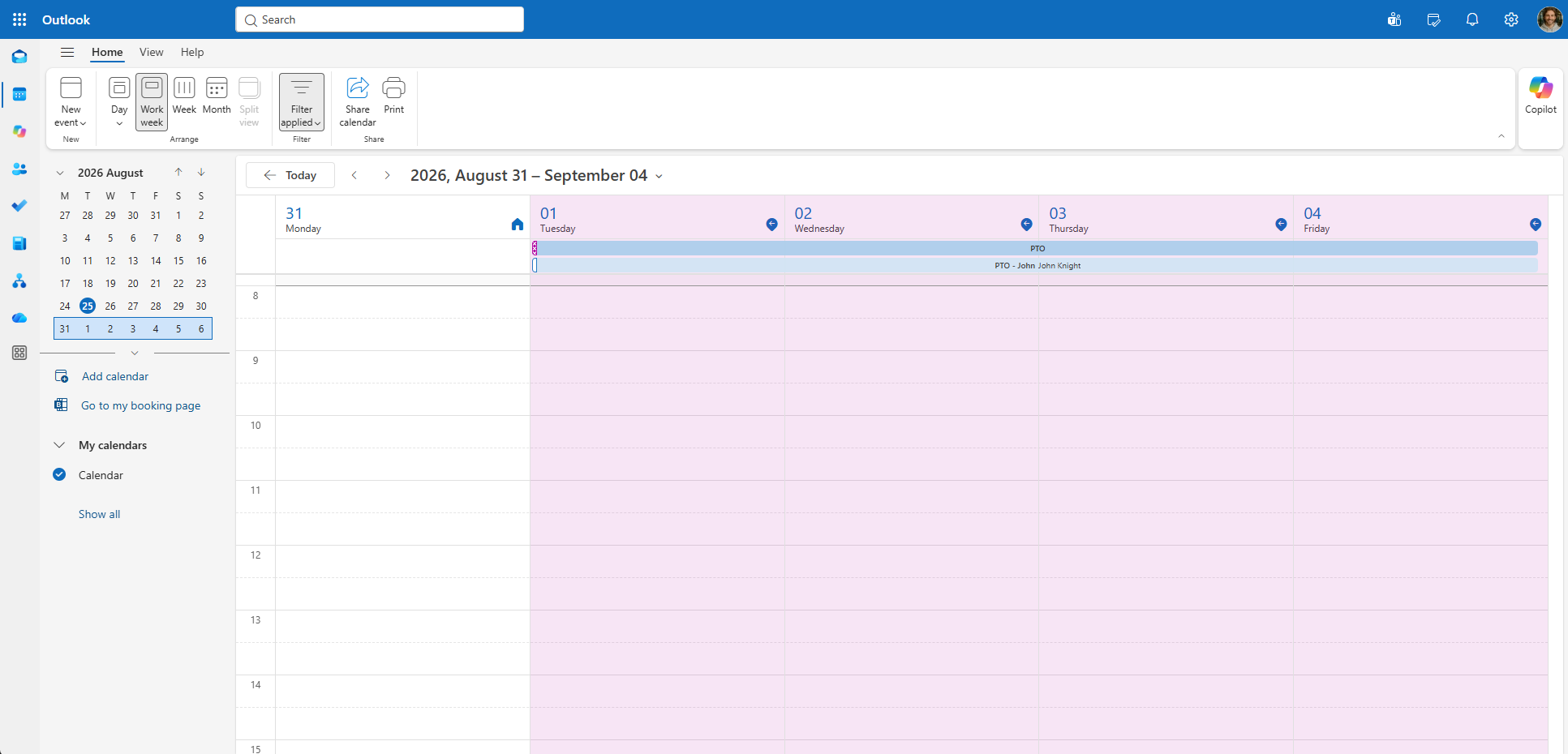
Scheduling out of office in Outlook sounds like one task. In practice, it means keeping three things aligned: your own calendar availability, a clear notification for your team, and an automatic email reply for people who contact you while you are away.
Why add planned absence to your Outlook calendar?
An automatic reply helps only after someone sends an email. An accurate calendar helps earlier, while meetings, deadlines, workshops, and handovers are still being planned.
- Outlook Scheduling Assistant can show that you are unavailable before an invitation is sent.
- Coworkers can arrange handovers and identify cover before your leave starts.
- Teams can schedule meetings and deadlines around real availability.
- Planned absence is visible even when nobody has emailed you yet.
- Microsoft Teams can reflect the corresponding Microsoft 365 availability.
The right time to update the calendar is when the absence is planned or approved—not on your final working day.
How to schedule out of office in Outlook without additional software
The clearest native setup uses two separate events with different purposes. The first blocks your own availability. The second informs the team without reserving any of their time.
Create a personal Out of Office event
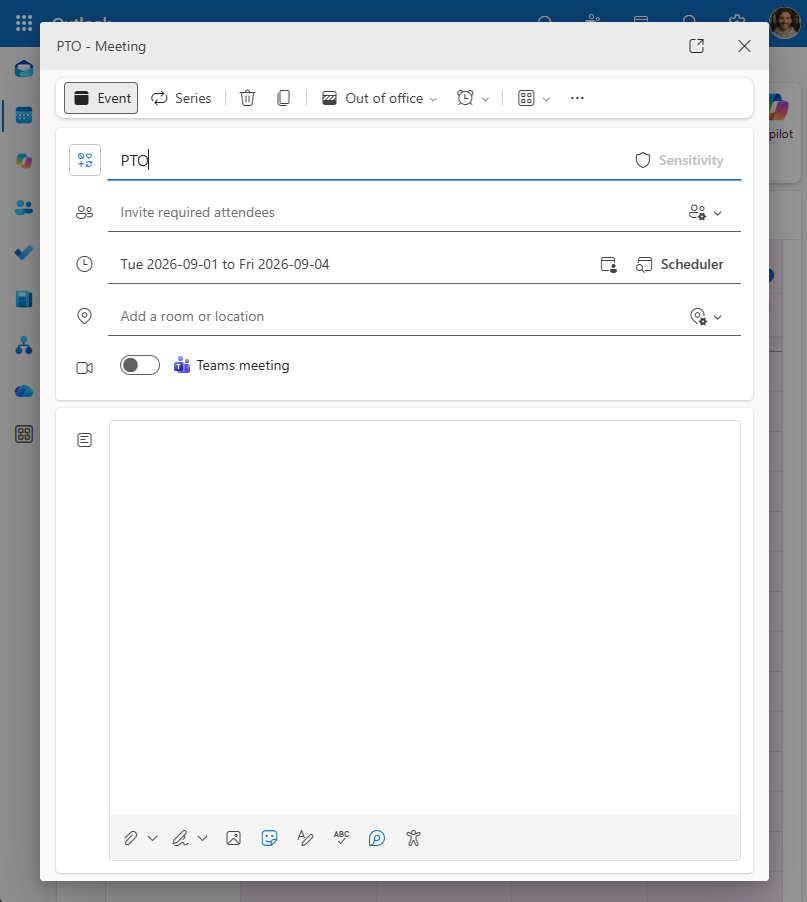
Open Outlook Calendar and create a new event or appointment. Give it the absence name defined by your internal guideline, such as PTO, Vacation, or Annual leave.
This is your personal calendar entry. Do not add coworkers as attendees.
- Select the start and end dates.
- Enable All day when appropriate.
- Set Show as or availability to Out of Office.
- Set the reminder to None if you do not need one.
- Save the event without attendees.
Check the availability setting explicitly. An all-day event can otherwise appear as Free, making you look available to people trying to schedule a meeting. Use a consistent, privacy-conscious title that follows your internal policy.
Create a separate Free meeting for your team
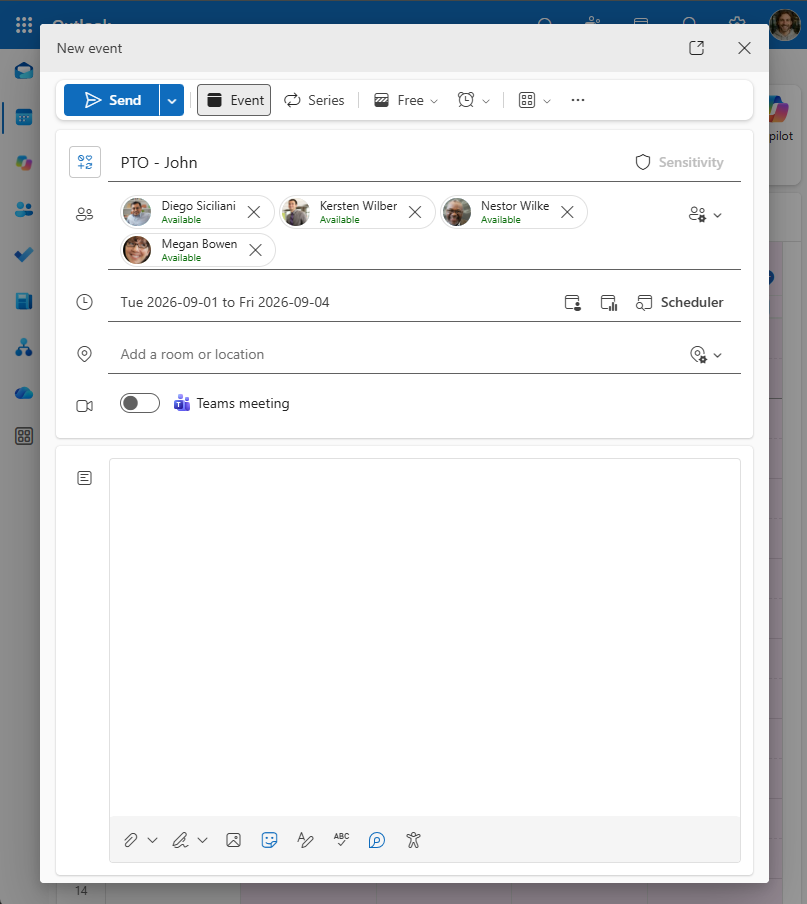
Create a second all-day event for the same dates and send this one to the coworkers who need to know. Include your name in the title—for example, PTO — John or John — PTO.
The name matters. When coworkers scan their calendars, they can immediately see who is away without opening the event.
- Use the same start and end dates as the personal event.
- Add the relevant teammates or group as attendees.
- Set Show as to Free.
- Disable Request responses if no attendance decision is needed.
- Set the reminder to None.
- Send the invitation.
Do not add coworkers to your personal Out of Office event. Sending that event can block their calendars, while changing it to Free can make you appear available again. Always keep the personal Out of Office event and the named Free team event separate.
Keep both events accurate when plans change
If the dates change, update your personal event and send an update for the team meeting. If the absence is cancelled, remove the personal event and cancel the team meeting.
This is easy to overlook when leave is also recorded in an HR system, spreadsheet, chat, or another absence process. The more copies of the same dates you maintain, the greater the chance that one becomes outdated.
Treat the approved absence record as the source of truth and reconcile both Outlook entries whenever it changes.
Schedule the automatic reply shortly before you leave
Calendar availability and automatic replies solve different problems. The calendar prevents avoidable scheduling conflicts from the moment the absence is planned. The automatic reply informs people who email you after the leave has started.
In new Outlook or Outlook on the web, open Settings, go to Accounts > Automatic Replies, enable the feature, and choose the start and end time. In classic Outlook, use File > Automatic Replies.
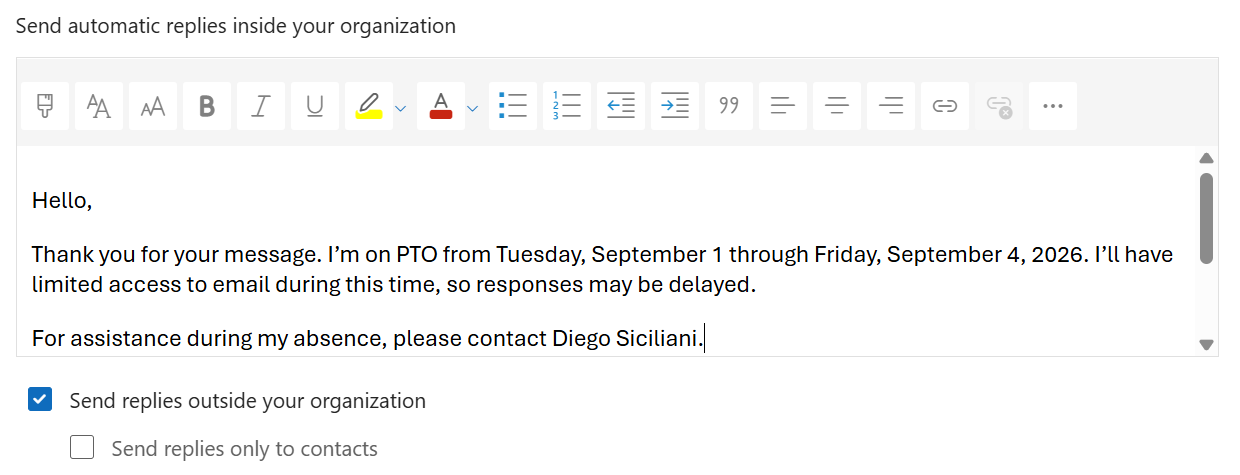
- State when you will return.
- Explain whether you will read email while away.
- Name an alternative contact for urgent matters.
- Use separate internal and external messages when appropriate.
- Avoid unnecessary personal details.
For current instructions for each Outlook client, see Microsoft's guide to setting up out-of-office automatic replies.
Team Absence does not create or manage automatic email replies. That remains an Outlook task shortly before the employee leaves.
Why the manual Outlook workflow becomes difficult for teams
The native process works for an occasional absence. The challenge is keeping every copy of the absence accurate when dates, recipients, teams, or approvals change.
Duplicate maintenance
Employees maintain a personal event, a team meeting, and often a separate approved absence record.
Missed updates
A date can be corrected in one place while Outlook or the official absence record still shows another.
Changing recipients
New team members may miss earlier invitations, and employees must remember which groups need each notification.
Crowded personal calendars
When several team members are on leave, coworkers' personal calendars fill up with separate absence entries. Even then, there is no central absence calendar for seeing the whole team.
Approvals stay separate
Outlook calendar events do not connect the request, manager decision, status, and final dates in one workflow.
No structured absence reporting
Generic events do not provide absence types, public-holiday context, personal annual views, or reports.
Outlook answers an individual scheduling question: Is this person available? Teams still need one reliable place to answer a broader question: Who is absent, when, and how does that affect the team?
Plan the absence once, then keep Outlook informed
Team Absence provides a central absence calendar and optional approval workflow inside Microsoft Teams. The approved or recorded absence becomes the source used for team planning and Outlook synchronization.
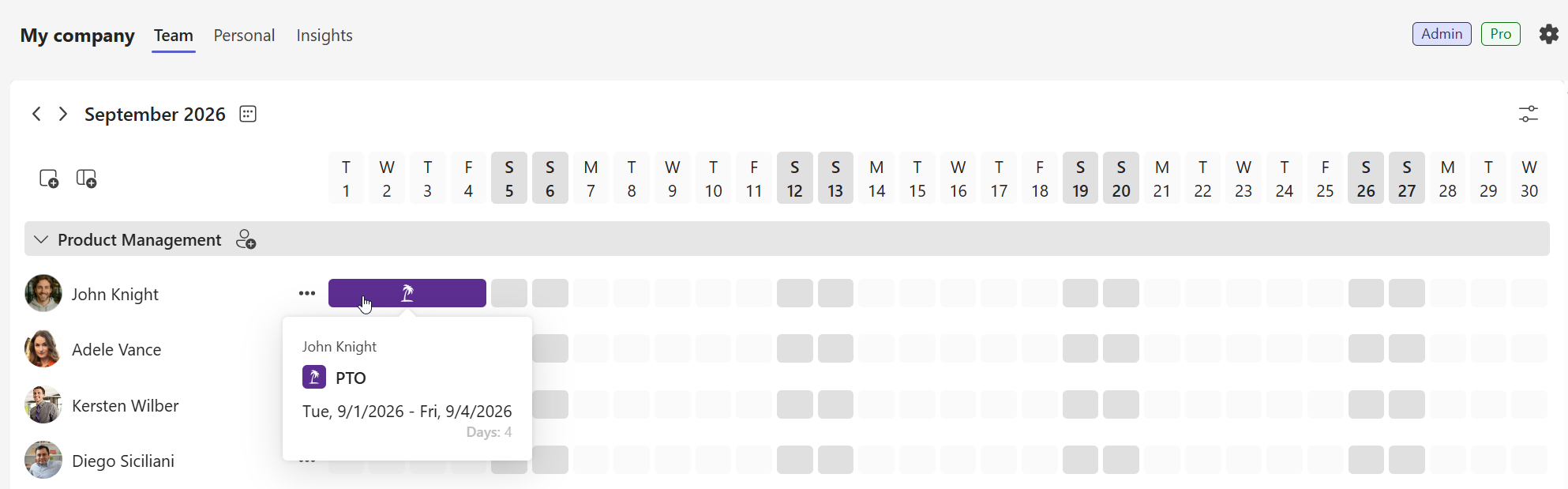
- An employee enters or requests the absence in Team Absence.
- The absence becomes visible in the relevant shared team calendar and approval workflow.
- Team Absence sends real Outlook meeting invitations for calendar synchronization.
- When the dates change in Team Absence, a connected meeting update keeps the Outlook entry aligned.
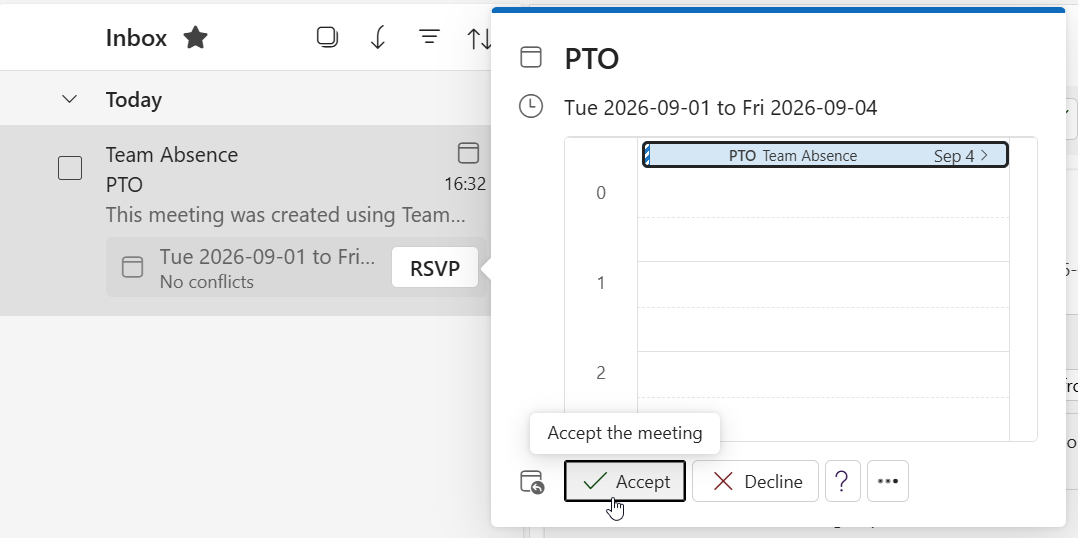
Because synchronization uses real meeting invitations rather than standalone ICS attachments, later changes remain connected to the calendar item. Employees do not need to download another file, import a replacement, or search for an old static entry to clean up manually.
After the Team Absence invitation is accepted in Outlook, the employee's calendar shows Out of Office for the planned dates. Coworkers see that the employee is unavailable in Outlook Scheduling Assistant when they try to schedule a meeting—before they send the invitation.
Your calendar stays private—Team Absence cannot access it
Work calendars can reveal customer relationships, interviews, medical appointments, confidential projects, and other sensitive information. An absence tool should not need access to that data. Team Absence is designed around that principle: it receives no calendar read or write permissions and has no technical route to browse an employee's Outlook calendar.
No calendar access
Team Absence cannot open, search, or inspect existing meetings, appointments, attendees, subjects, or other calendar contents.
Email invitations only
The only way Team Absence sends an absence to Outlook is through a standard meeting invitation by email. It cannot directly create, edit, or delete calendar items; date changes are delivered as connected meeting updates through the same email workflow.
That separation is deliberate: absence dates can reach Outlook, while the rest of the calendar remains technically out of reach. Invitation details are still shared with their recipients, so use absence titles and visibility rules that match your internal privacy policy. A team may need to know that John is unavailable without seeing a detailed reason.
Native Outlook workflow versus Team Absence
When is Outlook alone enough?
The native two-event workflow can be practical for small teams with occasional absences. A centralized workflow becomes more useful as coordination and reporting needs grow.
- Use Outlook alone when the team is small, absences are infrequent, and no centralized approval or reporting is required.
- Consider Team Absence when employees already record leave somewhere else and calendar dates regularly need reconciliation.
- Use a shared absence view when managers need to see overlapping leave, public holidays, and team coverage at a glance.
- Use invitation-based synchronization when Outlook visibility is important but general calendar access is not appropriate.
If you are also comparing shared calendar options inside Teams, read our guide to creating a leave calendar in Microsoft Teams.
Plan leave once with Team Absence
Team Absence gives employees and managers one central place to manage team absences inside Microsoft Teams. Record or approve leave in one place, see overlapping absences at a glance, and keep the team informed without filling personal calendars with manually maintained events.
Connected meeting invitations keep Outlook availability aligned when dates change—without giving Team Absence read or write access to employee calendars. Employees only need to schedule their automatic email replies in Outlook before leave.