
How to Update The App Manifest
Most updates for Team Absence are automatically rolled out to your Microsoft Teams environment. However, in certain cases, a manual update of the app’s manifest file is required to ensure you’re using the latest version. This typically applies when structural or permission-related changes have been made that Microsoft Teams does not update automatically.
Step 1: Open the app and start the update
Open Team Absence in Microsoft Teams. When a new version is available, you’ll see an update banner displayed at the top of the app window. Click Update to begin the update process.
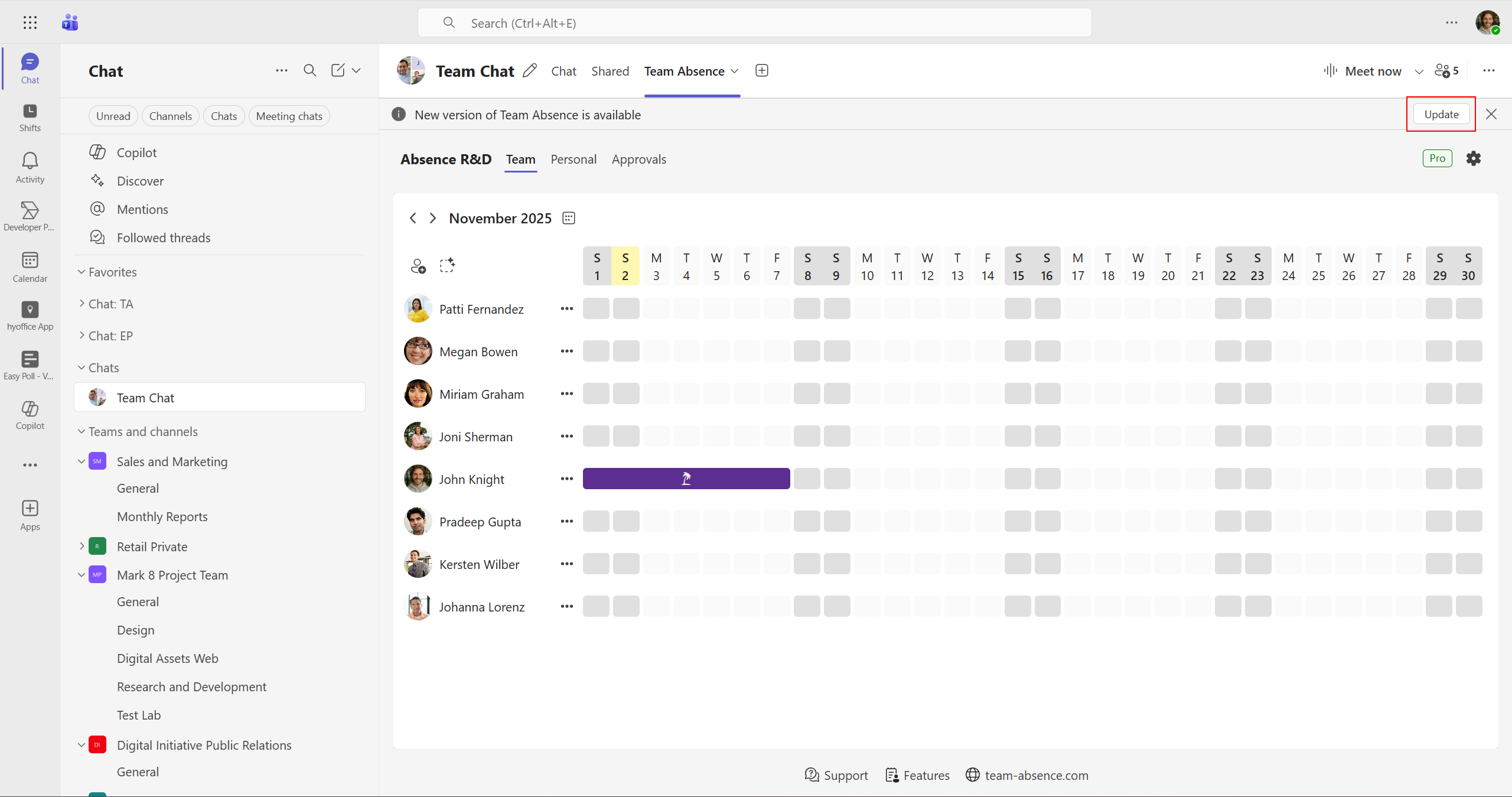
Step 2: Confirm the update
In the dialog that appears, confirm the update and click the Update now button.
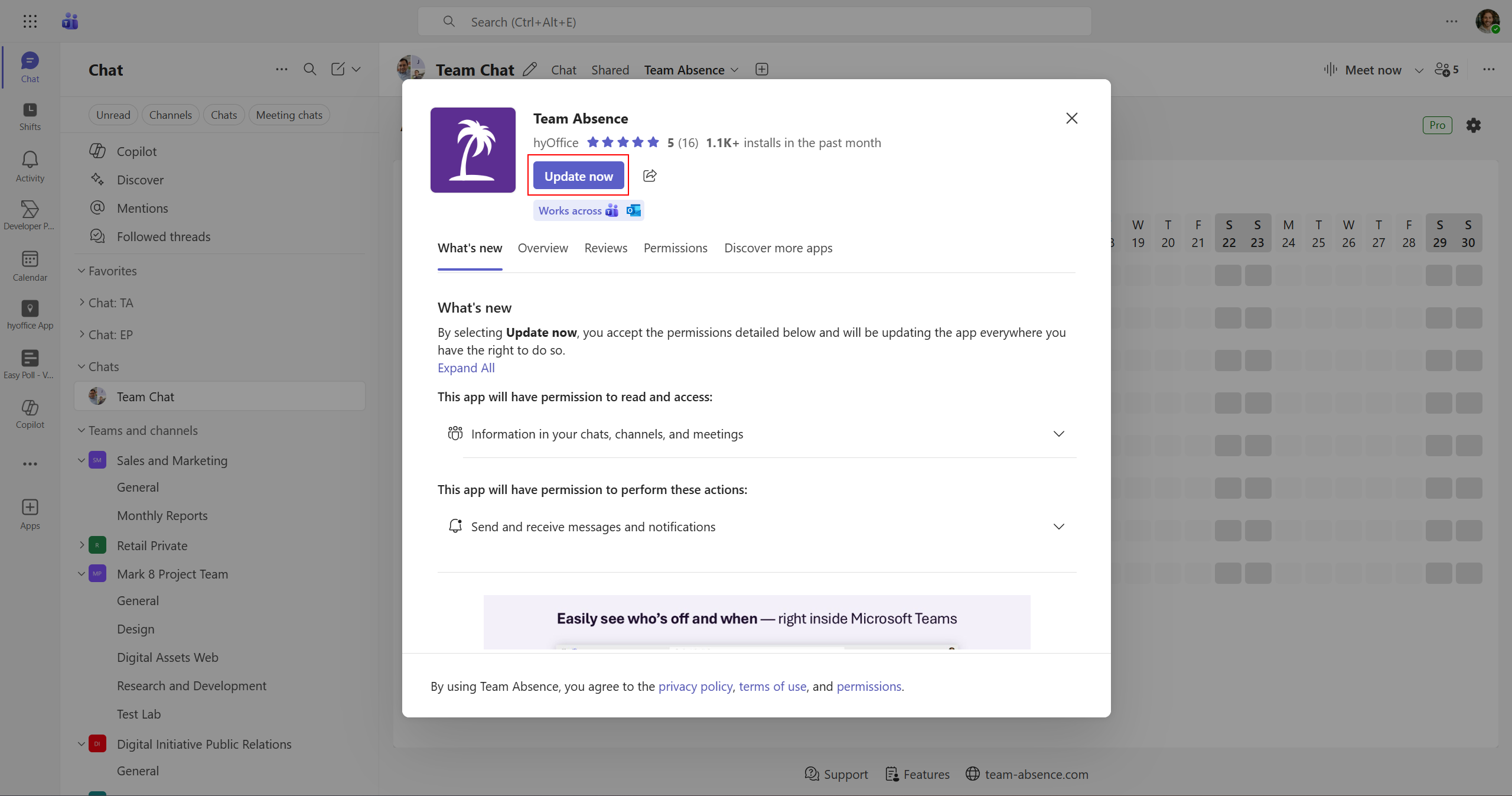
That’s it! You’ve successfully updated the app and can now enjoy the latest features and improvements.
Verify the installed version
To check whether you already have the latest version installed, you can verify the app version as follows:
Group Chat
Select the Manage Apps option from the group chat menu.
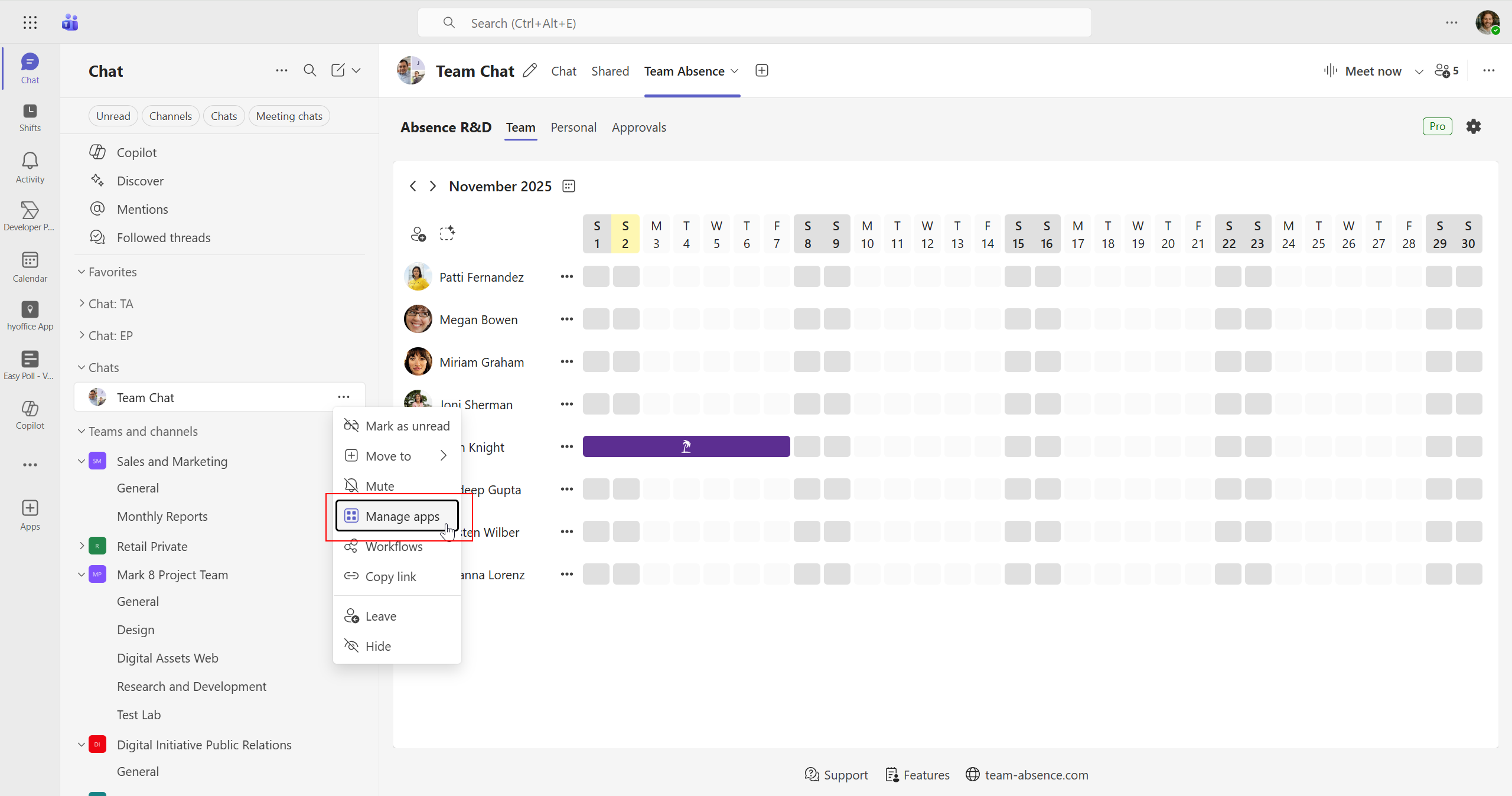
Select the app in the Apps tab to view its details.
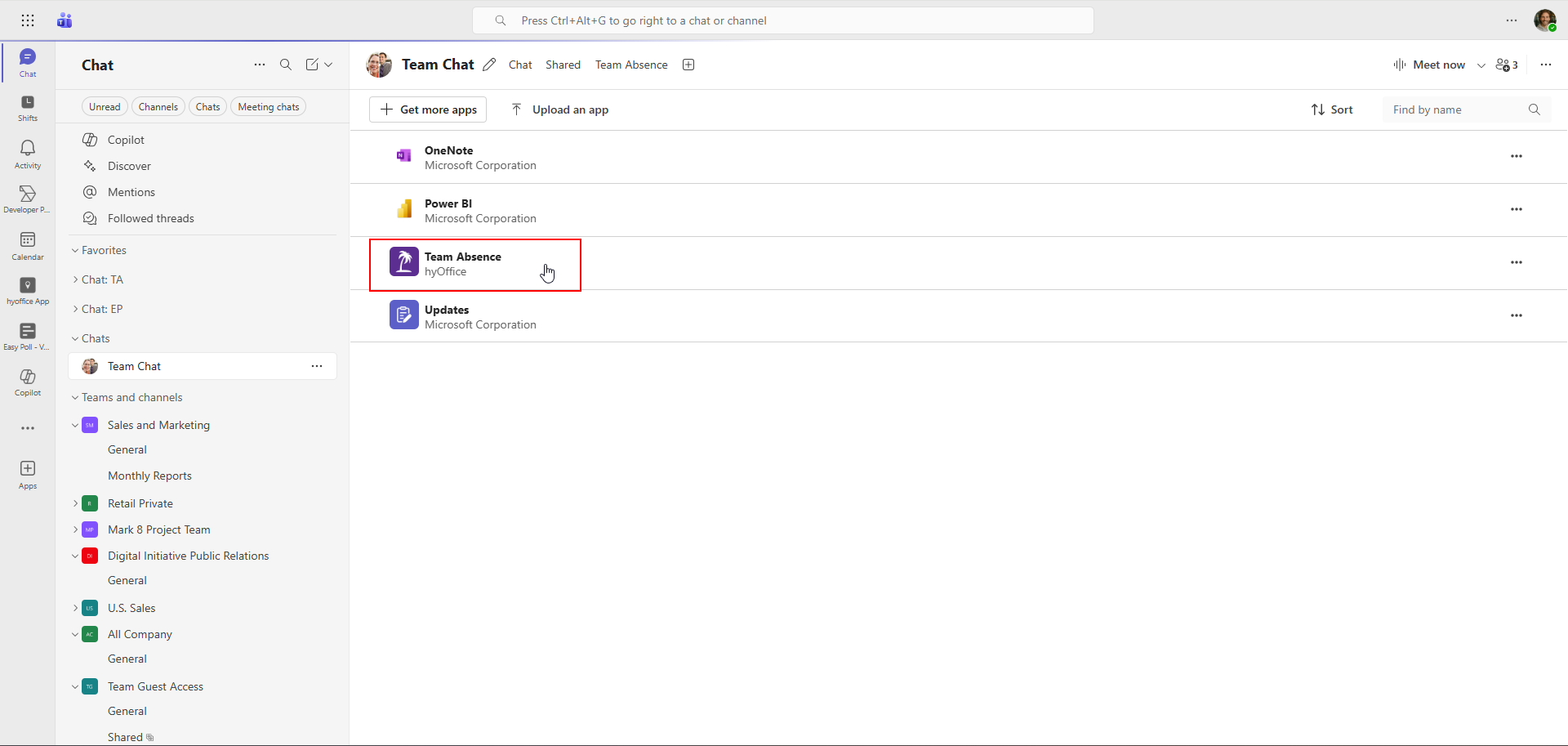
Team Channel
Select the Manage Team option from the team menu.
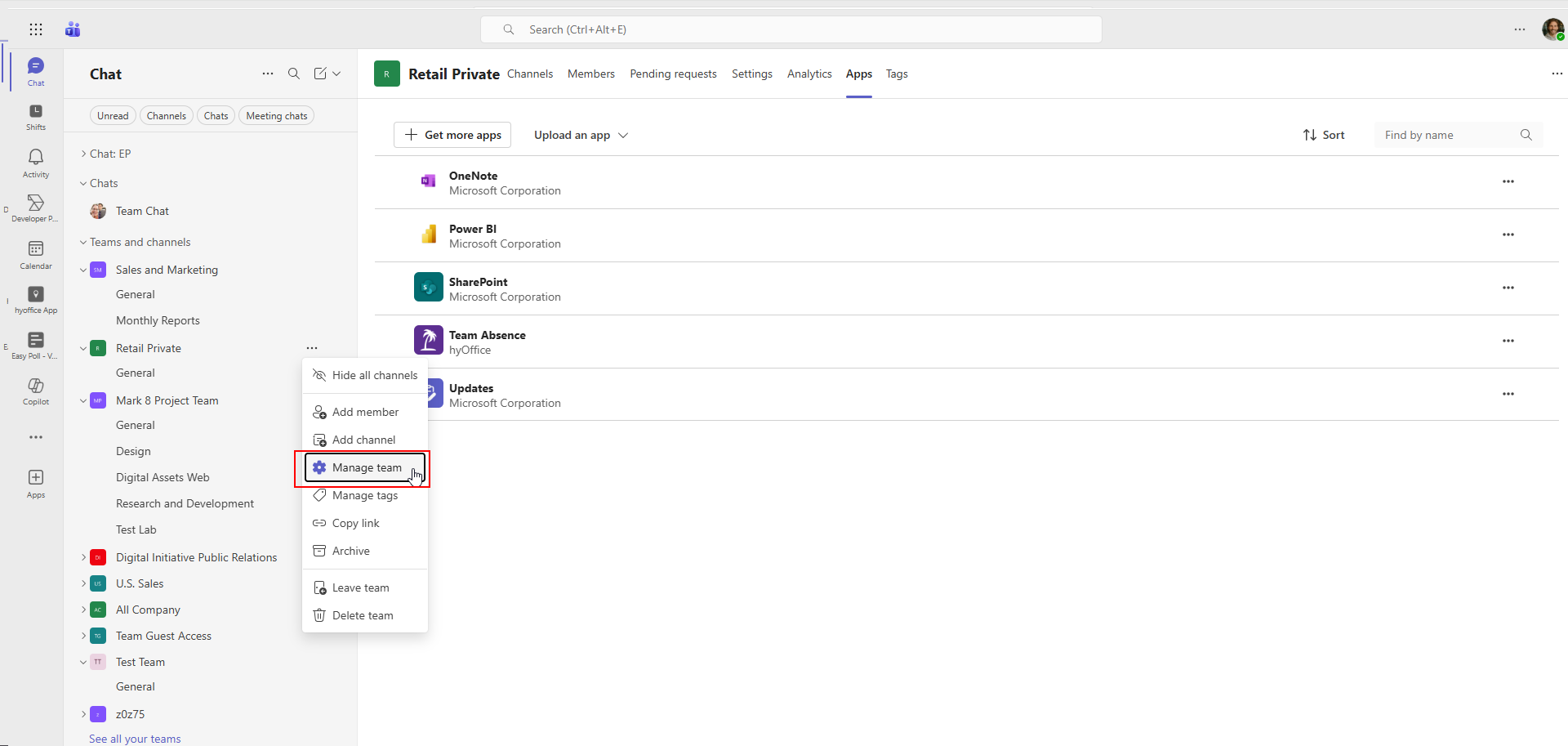
Select the app in the Apps tab to view its details.

Verify app version
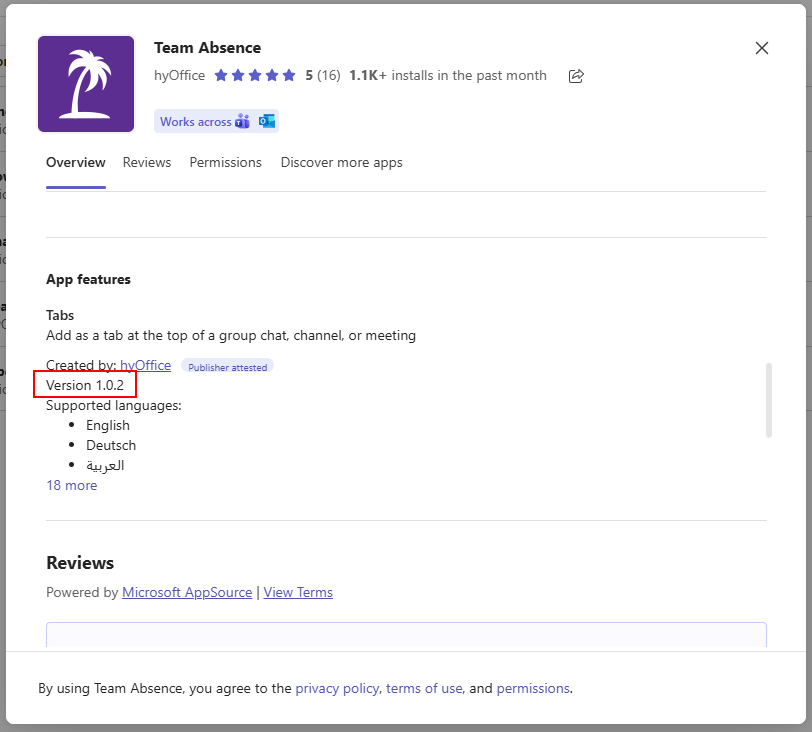
In the app details dialog, scroll down to find the version number and confirm that the latest version (1.0.2) is installed.
If you experience any issues updating your manifest, please use our contact form.