PTO requests in Microsoft Teams should be easy for employees, clear for managers, and visible for the team. Someone wants to take vacation, request paid time off, work remotely, attend training, or travel for business. A manager needs to review the request, and everyone else needs to know what it means for team availability.
Many teams start with chat messages, channel posts, or personal calendar entries. That works for a while, but requests get buried, approvals are hard to find later, and approved PTO does not automatically become a clear team planning view.
Native Teams option
Use Approvals for general requests
Microsoft Approvals is useful for general decisions and simple sign-offs. It records a decision, but it is not built for PTO calendars, remote work planning, or team availability.
- Good for generic approval requests that only need a decision.
- Useful when the request is not connected to team availability.
- Less suitable for PTO requests, vacation approvals, and remote work planning.
See the limits for PTO
Team Absence workflow
Manage PTO requests with the right context
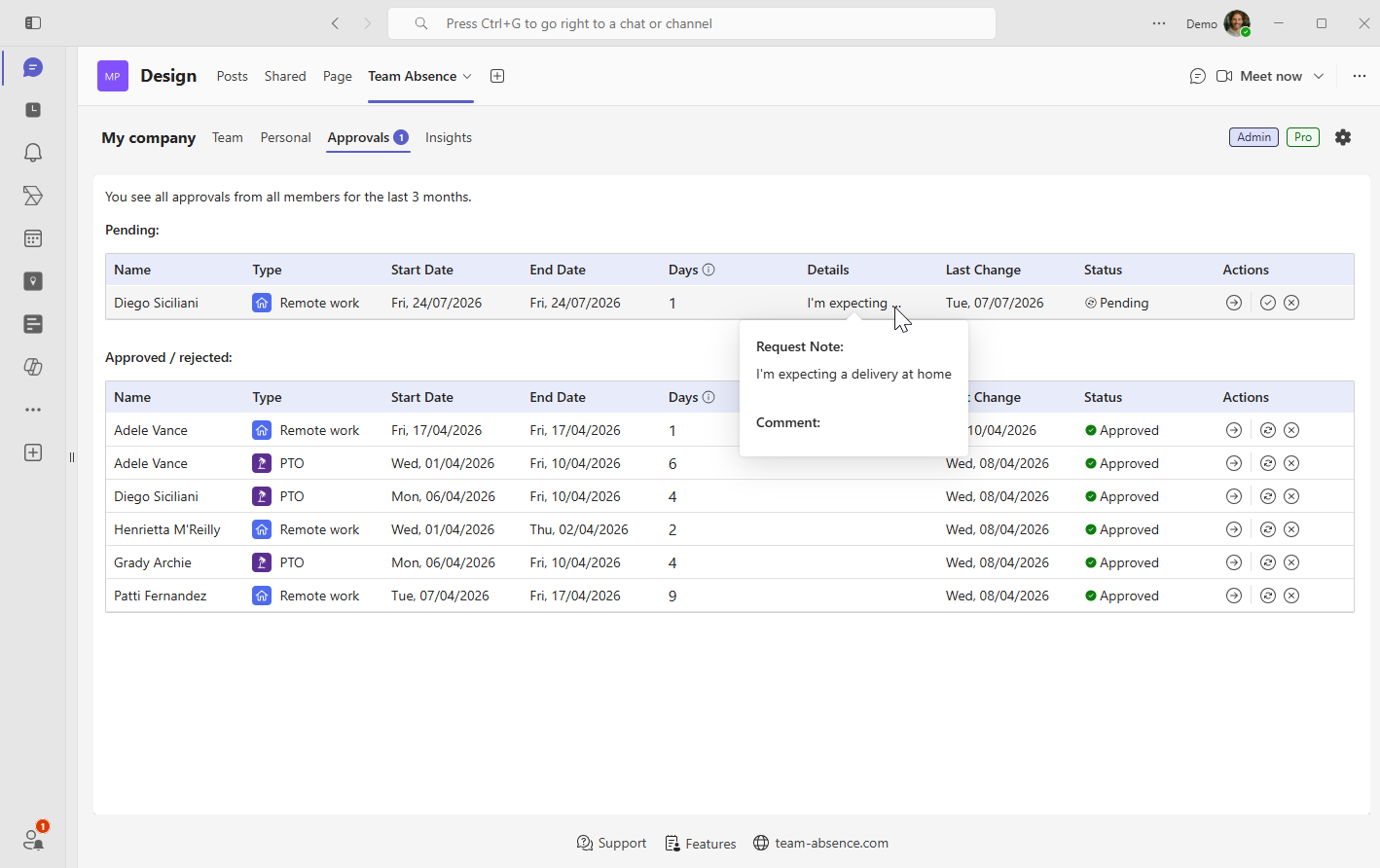
Team Absence keeps PTO and remote work approvals inside Microsoft Teams, but connects every request to absence types, request status, team availability, personal views, and Outlook calendar synchronization.
- Approval per absence type for vacation, PTO, remote work, and more.
- Pending, approved, and rejected requests are easier to review in context.
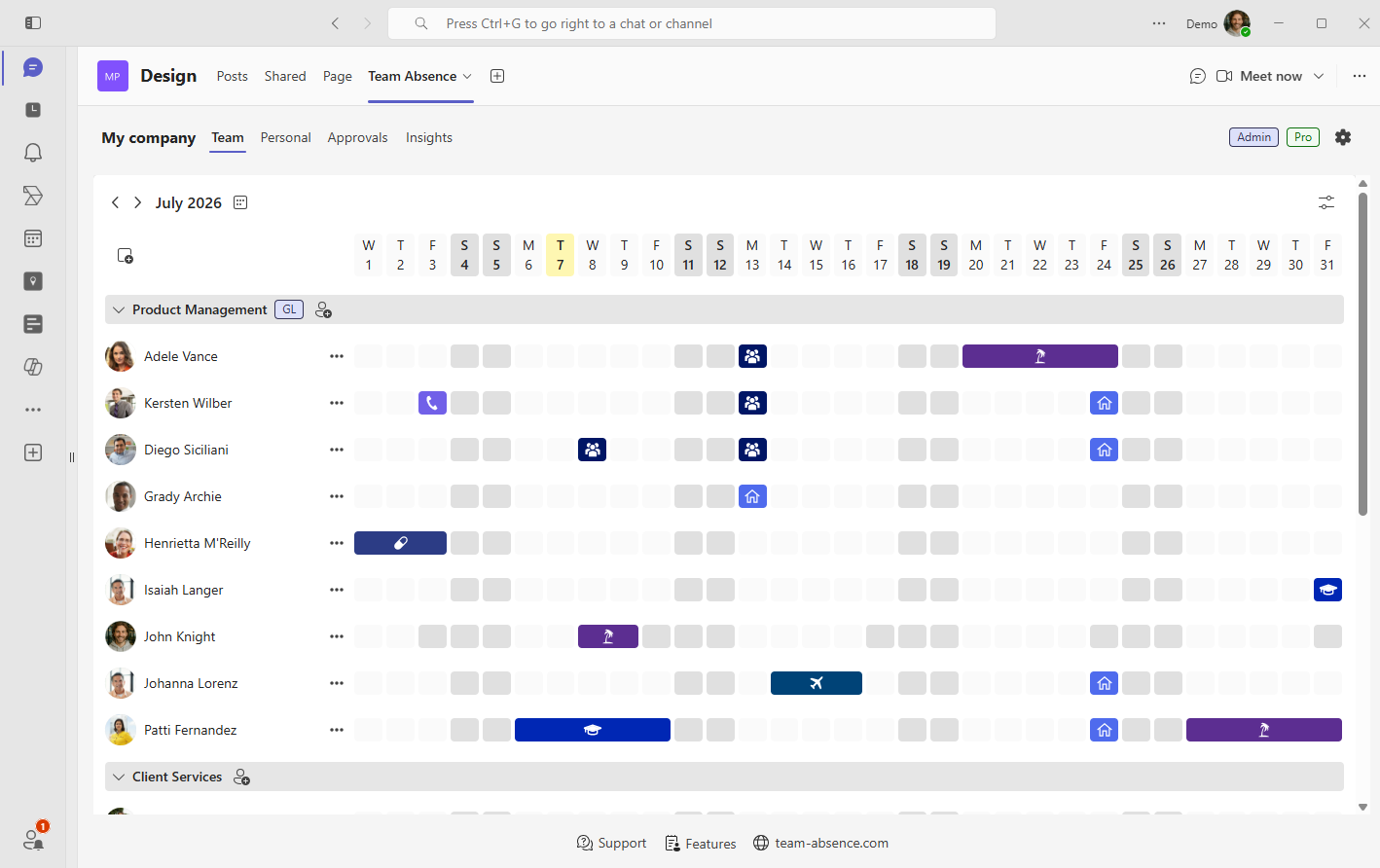
- Shared team calendar visibility helps managers plan coverage.
- Outlook and Teams sync keeps availability aligned across Microsoft 365.
Where the Native Approvals App Falls Short for PTO
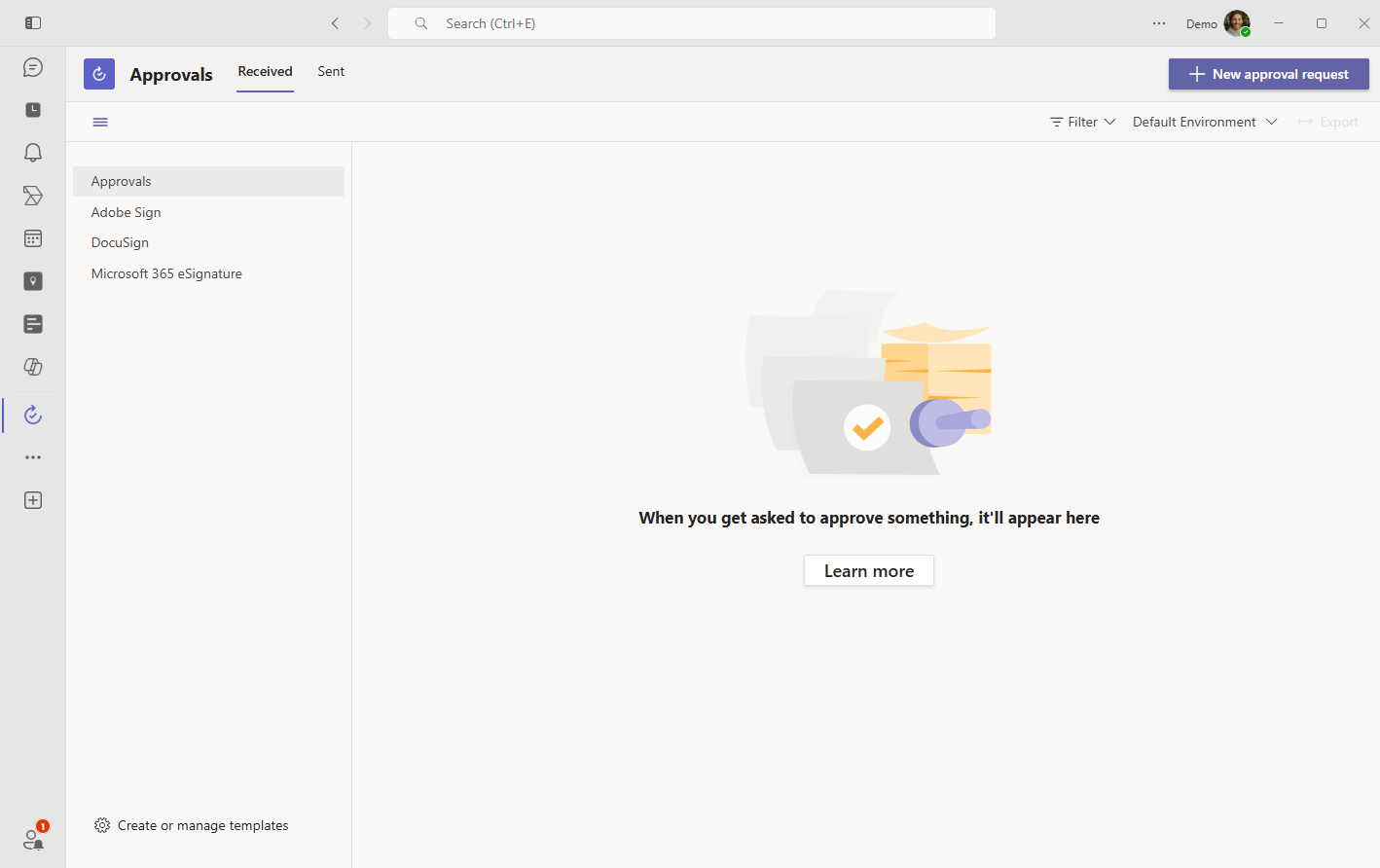
Microsoft Teams has a native app called Approvals for creating and tracking general approval requests. It is helpful for broad business decisions, but PTO approval is not just a yes-or-no task. It is also a planning problem: managers need to understand availability, overlapping absences, pending requests, and already approved time off.
Native Approvals request in Microsoft Teams
Generic approval workflow
Native approvals are designed for broad use cases. That flexibility is useful, but it also means the workflow is not built around absence types, PTO rules, date ranges, or team coverage.
No PTO-focused approval overview
Managers need more than a list of individual requests. They need to see which PTO requests are pending, which team members are affected, and how those requests relate to the calendar.
No clear overview of approved PTO
After a request is approved, the native workflow does not become a dedicated PTO calendar. Approved vacation, remote work, and other absences still need a place where the team can plan around them.
Missing PTO context
A PTO request is not the same as a generic sign-off. It needs context such as absence category, dates, comments, availability, team view, personal view, and ideally Outlook synchronization.
Native Approvals can work when...
- The request is a simple one-off decision.
- The approval does not need a team availability calendar.
- Approved items do not need to become PTO or absence records.
- You are managing general business approvals, not absence planning.
Use Team Absence when...
- PTO, vacation, sick leave, or remote work need a structured approval workflow.
- Managers need to review requests with team coverage and calendar context.
- Employees should see whether requests are pending, approved, or rejected.
- Approved absences should support Microsoft 365 calendar visibility.
Try Team Absence in Teams
How to Set Up PTO Requests in Team Absence
Inside Microsoft Teams, setting up PTO requests in Team Absence is straightforward. Define which absence types need approval, assign the right group leaders, and let employees submit vacation or remote work requests in a structured workflow.
1
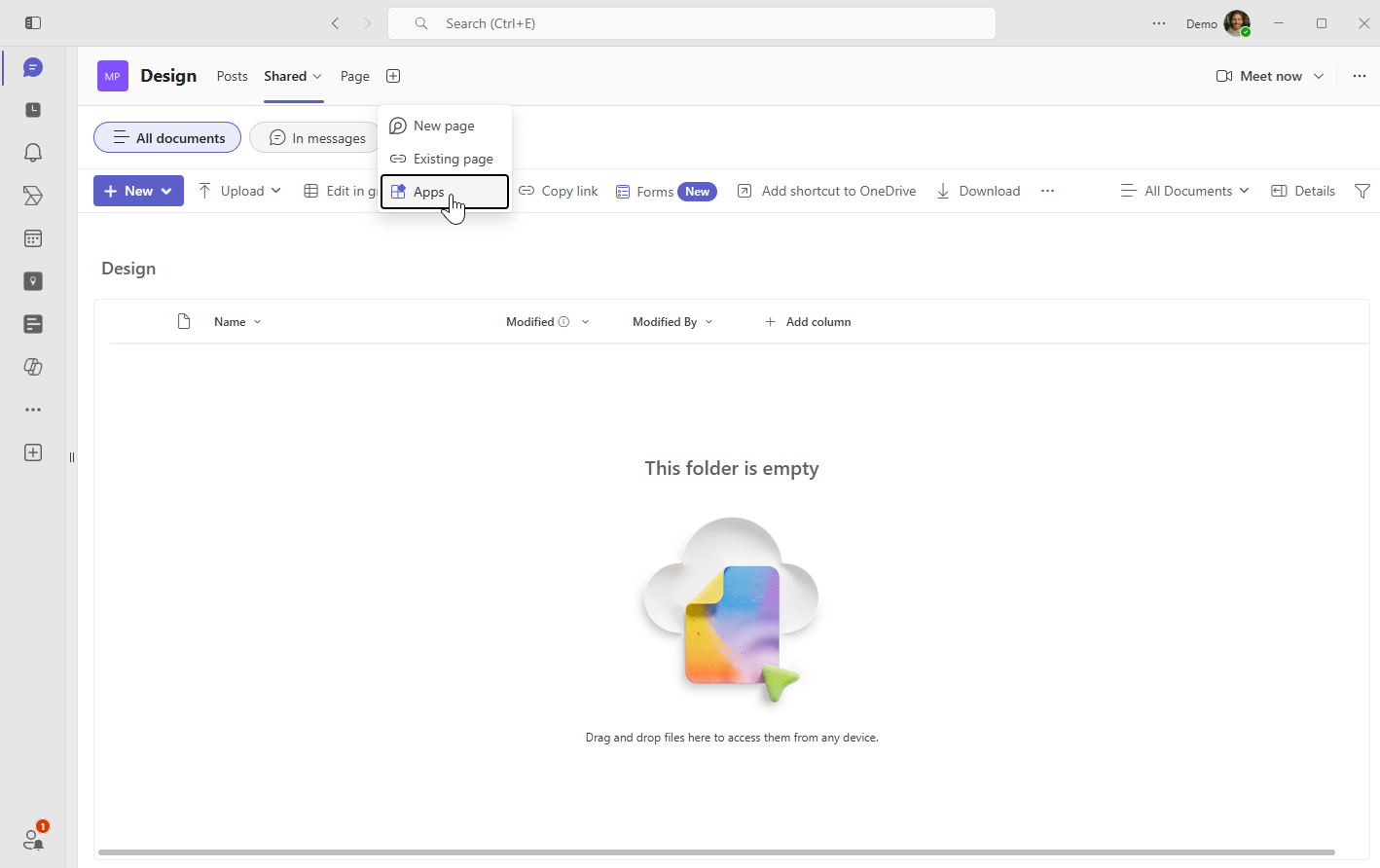
Add Team Absence to Microsoft Teams
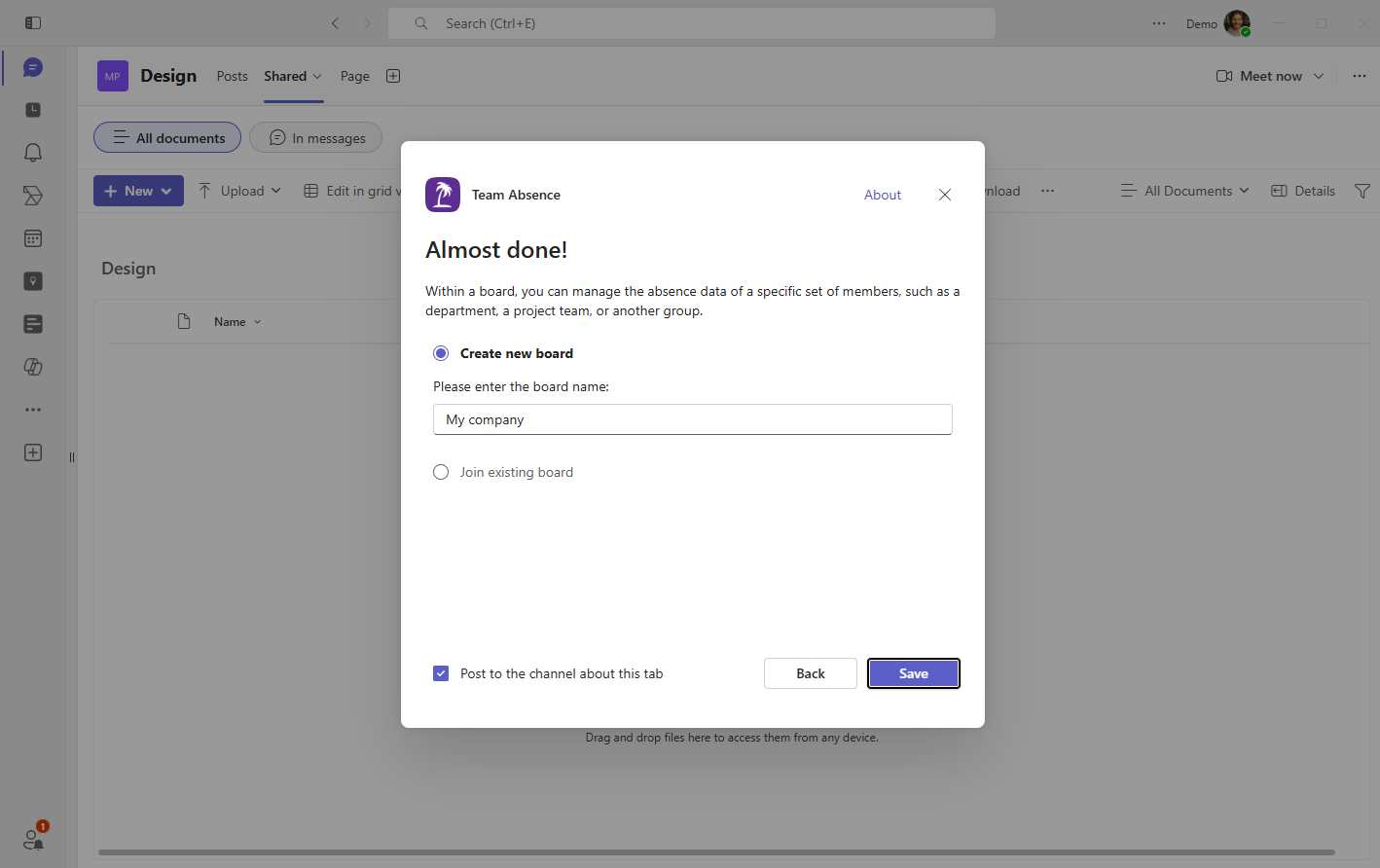
Start by adding Team Absence to a Microsoft Teams channel or group chat. During setup, create or join a board. A board is the shared workspace where PTO, vacation, remote work, and other absence information is managed.
2
Create or select the right board
Choose the board that should own the PTO request workflow. A department board can keep manager approvals focused, while a project board can help delivery teams understand coverage during important phases.
3
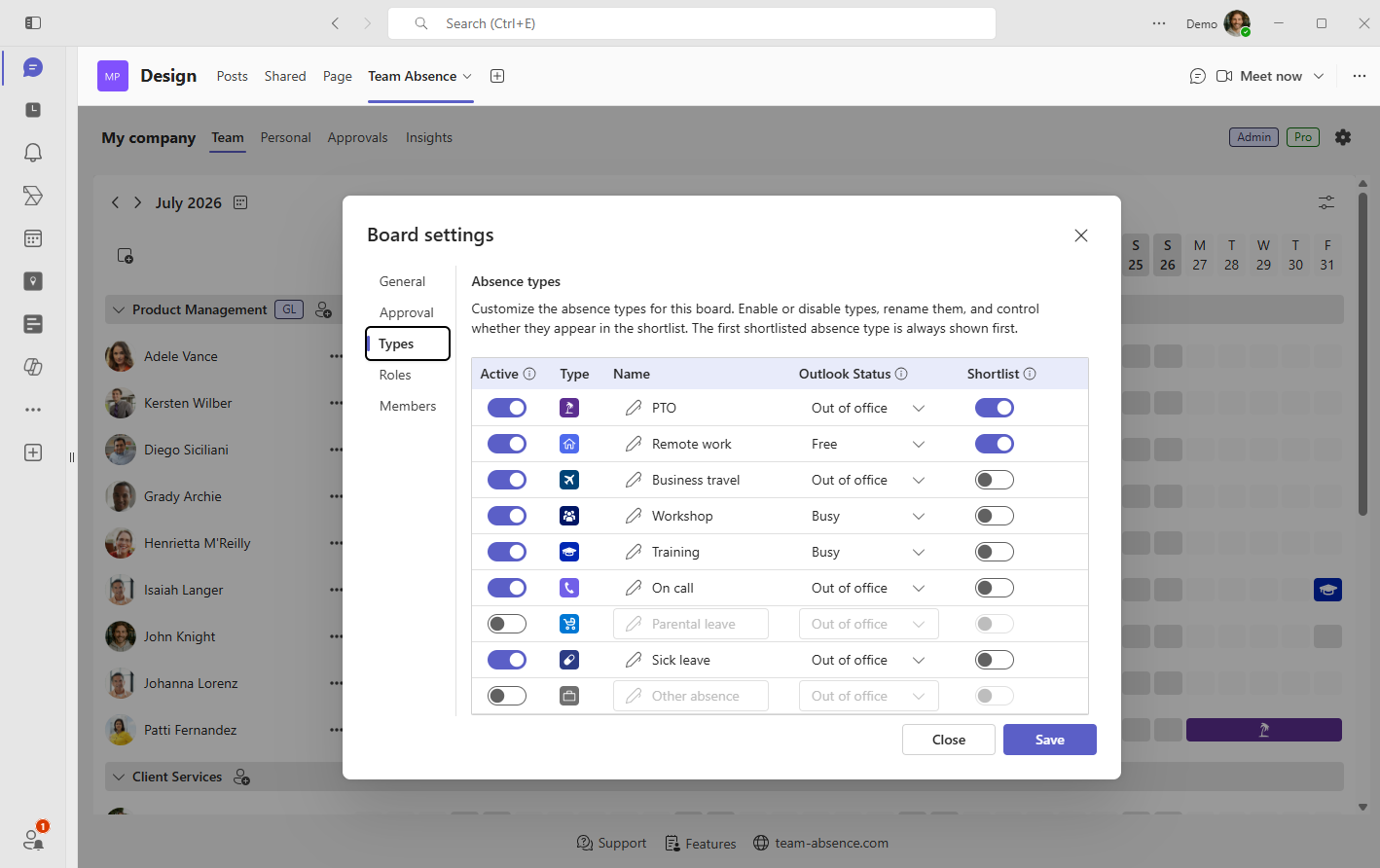
Configure vacation, PTO, and remote work types
Define the absence types your team actually uses. Common examples include Vacation, PTO, Remote Work, Sick Leave, Business Travel, Training, Parental Leave, and custom categories. Structured absence types make requests easier to approve and easier to understand in the calendar.
4
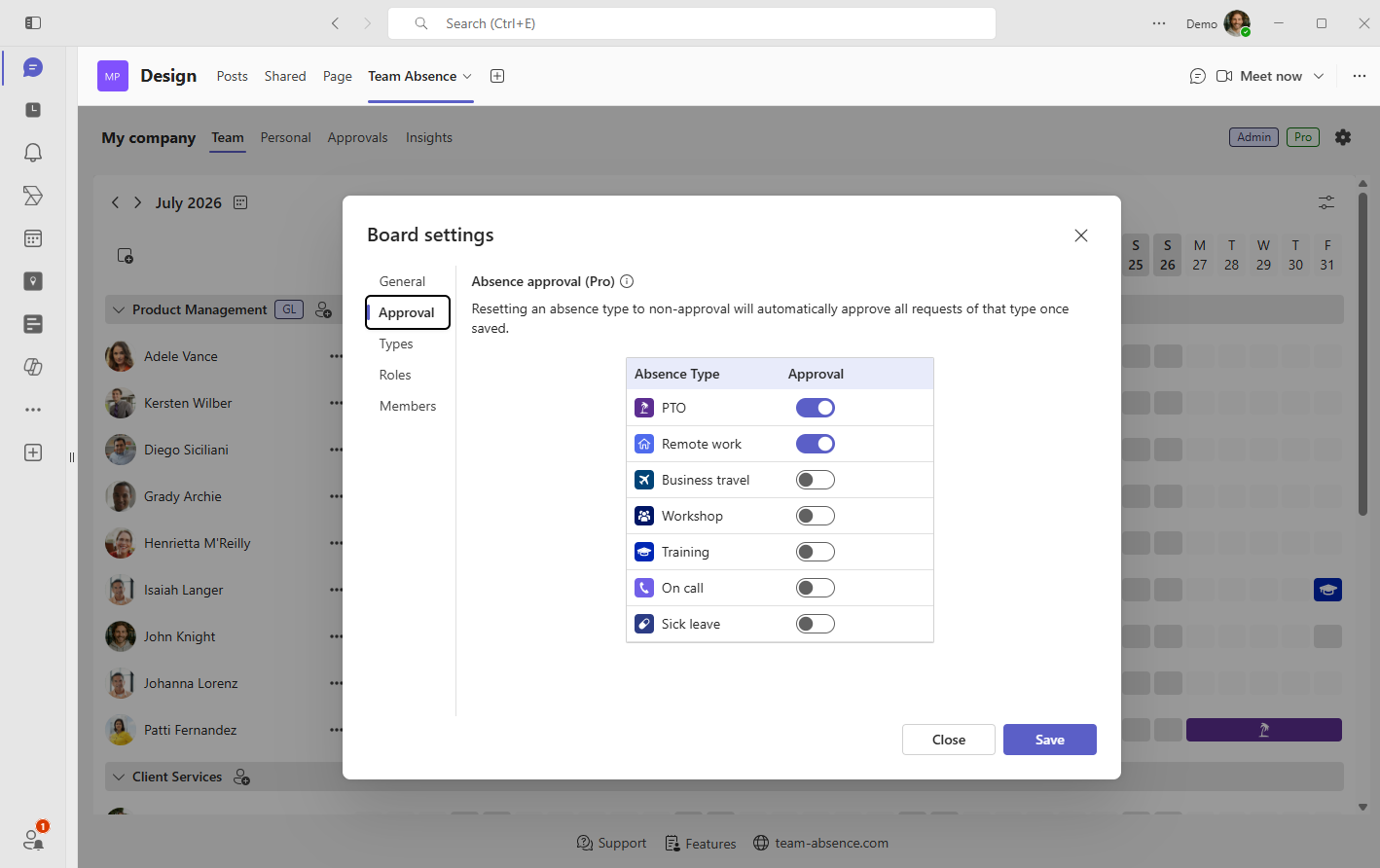
Enable approvals for the right absence types
In the board settings, enable approval only for the categories that need manager review. For example, you might require approval for Vacation, PTO, and Remote Work, while allowing training or business travel to be recorded directly.
5
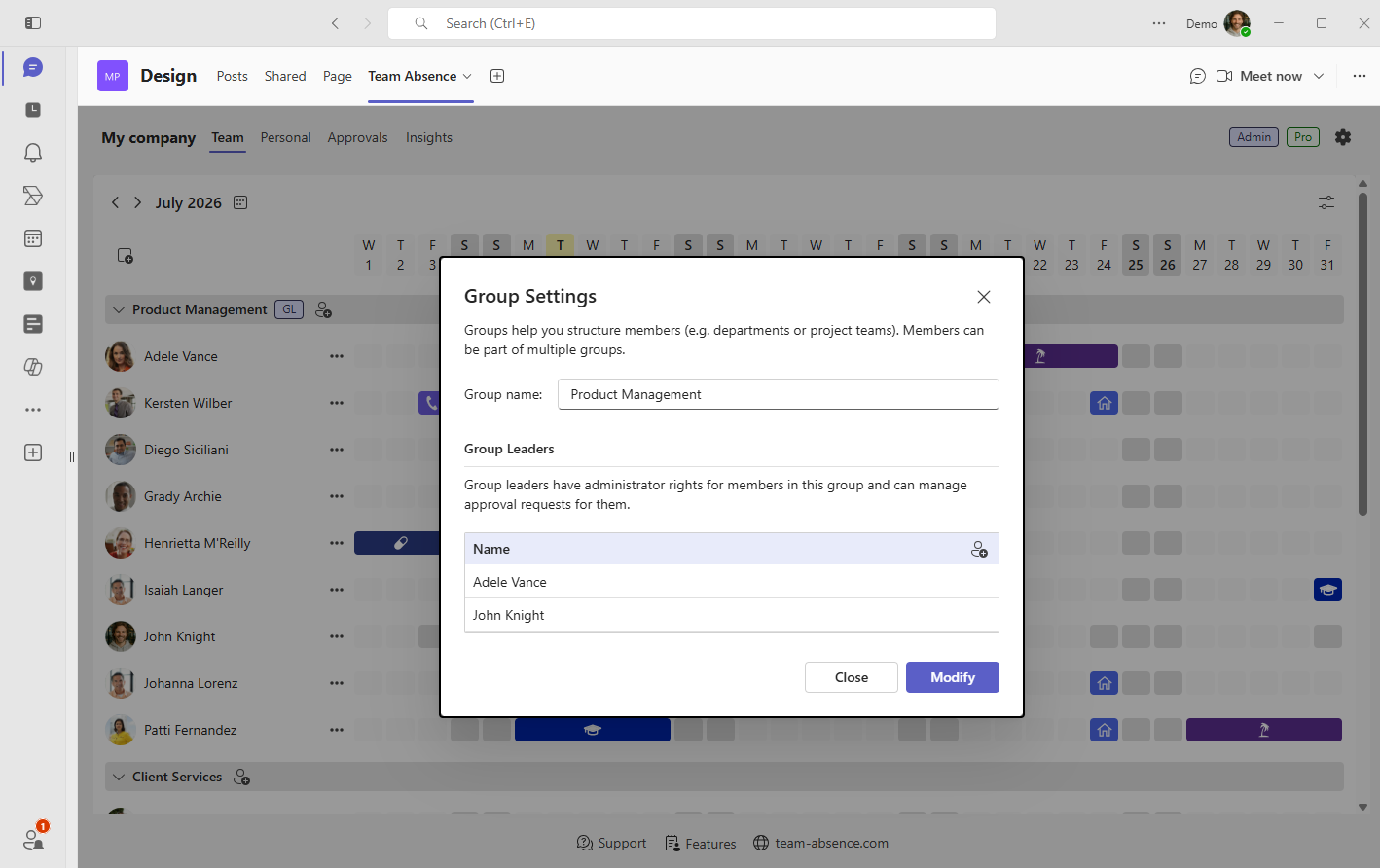
Assign group leaders as approvers
Set up groups and group leaders for the members they are responsible for. Group leaders can decide on PTO, vacation, and remote work requests, and they receive a Microsoft Teams notification when a new request needs their approval. This makes it fast to mirror your real team structure without a complex HR setup.
6
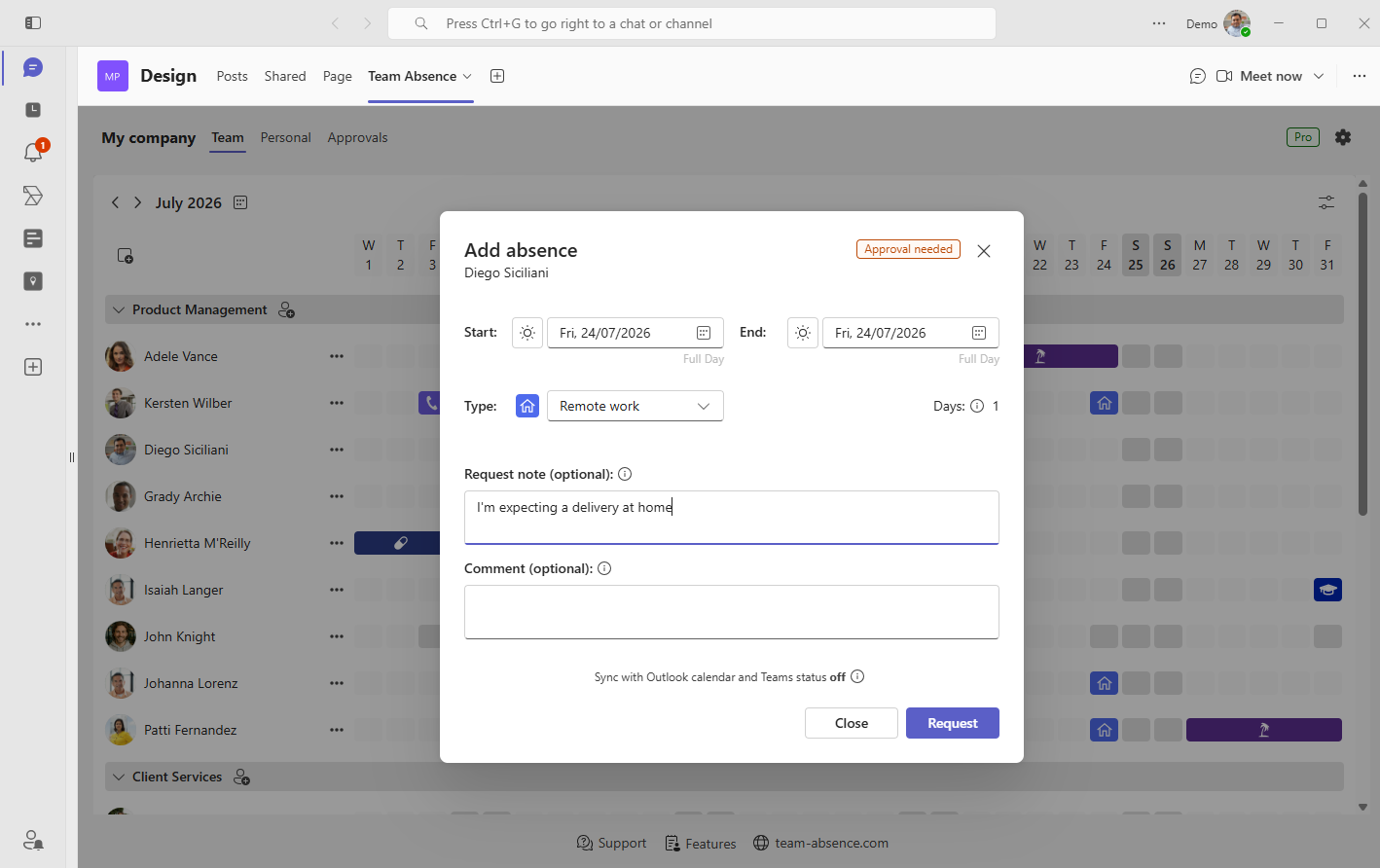
Let employees submit PTO or remote work requests
Once approvals are enabled, employees request PTO, vacation, or remote work directly in Team Absence. They select the absence type, choose the date or time period, and optionally add context such as availability notes or handover information.
7
Review, approve, and keep the calendar clear
Group leaders and approvers review requests in Microsoft Teams, decide whether to approve or reject them, and keep the status connected to the absence record. The requester can see the request status, while the team keeps a clearer overview of vacation, PTO, remote work, and availability.
This creates a practical PTO request workflow in Microsoft Teams: employees request time away where they already work, group leaders decide with the right absence context, and the team calendar stays easier to trust.
Set up PTO approvals without leaving Microsoft Teams
Add Team Absence to Teams and turn vacation, PTO, and remote work requests into a structured approval workflow.
What Team Absence Adds to PTO Requests
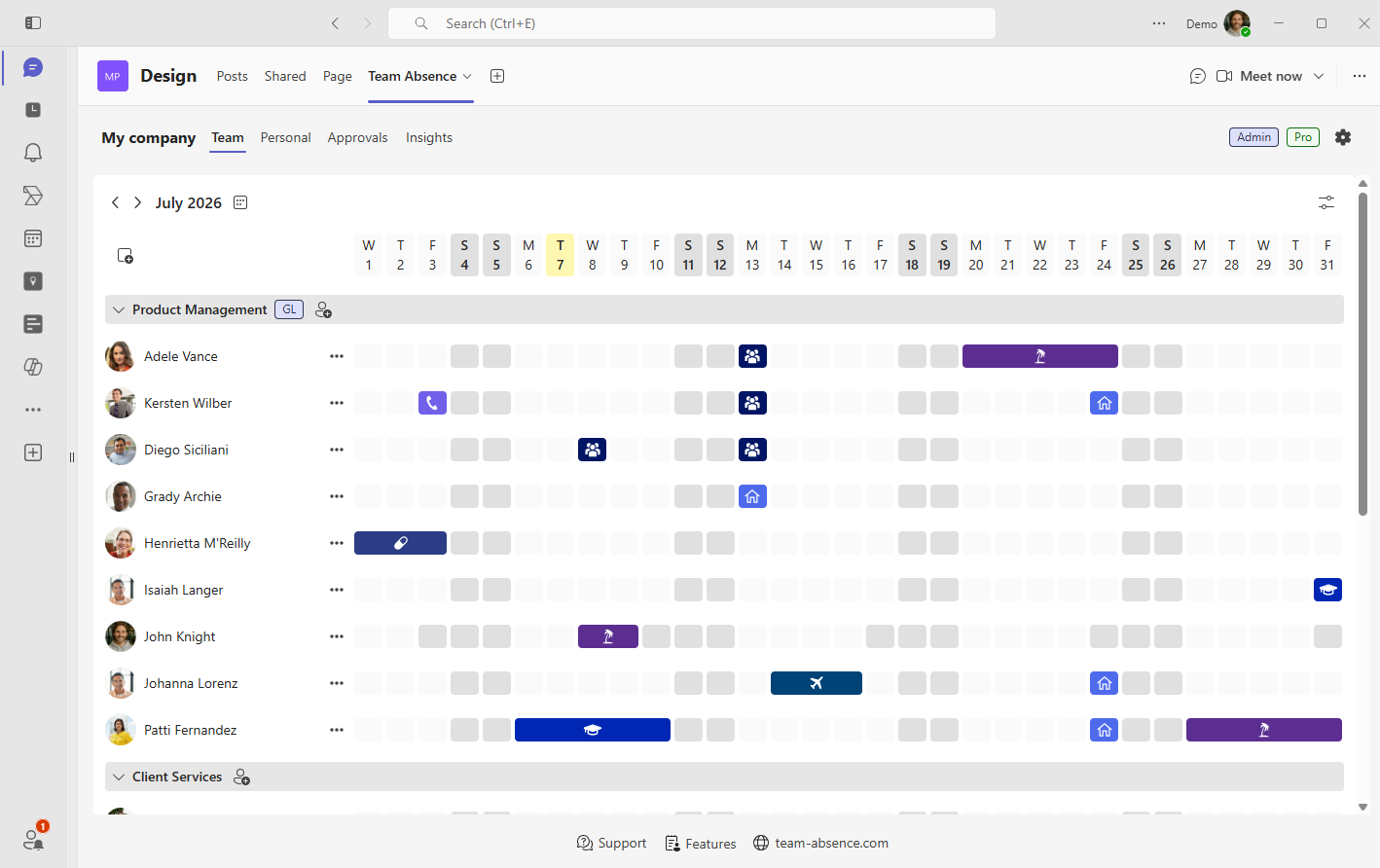
Team Absence is built specifically for managing PTO, vacation, remote work, sick leave, and other absences in Microsoft Teams. Instead of treating approval as a separate administrative task, it connects each request to the shared absence calendar and the day-to-day planning view.
Team Absence team calendar with PTO request status
Approval per type
Require approval for specific absence types such as vacation, PTO, or remote work while keeping other categories simple.
Central request view
Keep pending, approved, and rejected requests easier to review without searching through chat messages or email threads.
Team availability
Connect approved PTO and remote work requests to a shared team calendar so colleagues can plan meetings, handovers, and coverage.
Outlook sync
Help absences stay visible across Microsoft 365 with Outlook and Teams availability synchronization.
Key Benefits for PTO Requests
-
Fewer forgotten requests because PTO approvals stay visible in one workflow.
-
Less manual follow-up because employees can check request status directly.
-
Better planning because managers can review PTO with calendar context.
-
Clearer PTO records because approved absences remain connected to structured absence data.
-
More flexible policies because approval can be enabled per absence type.
-
Simple Microsoft Teams adoption because the workflow lives where the team already works.
Best Practices for PTO Requests in Microsoft Teams
A simple approval workflow is usually easier to adopt than a heavily controlled one. Use approvals where they add clarity, and keep routine absence management fast for employees and managers.
- Only require approval where it matters. Vacation, PTO, and remote work may need approval, while some informational absence types can be added directly.
- Use clear absence types. Do not mix vacation, sick leave, remote work, training, and business travel into generic calendar entries.
- Ask for short comments when helpful. A remote work request might include availability details, while a PTO request might mention handover notes.
- Review requests in one place. Managers should not need to compare chat messages, email threads, spreadsheets, and Outlook entries.
- Match boards to real teams. Company, department, regional, and project boards can support different approval responsibilities.
Microsoft Teams is already where many PTO and remote work conversations begin. But for vacation, paid time off, remote work, and other absences, a chat message or generic approval request is often not enough. If you want a practical PTO request workflow in Microsoft Teams, Team Absence gives you the structure your team needs: absence types, approval status, manager review, team visibility, Outlook sync, and a shared calendar view.
Do you have questions about PTO request workflows for your team? Please use our contact form.


 Start for free now!